TL;DR:
- Successful skin withdrawal requires verifying Steam account settings including public inventory and active Steam Guard.
- Follow a step-by-step process from logging in, opening trade offers, to confirming skins in the Steam inventory.
- Patience and attention to detail prevent common issues like expired offers or silent failures.
You just pulled a rare skin from a case, or finally won that clutch battle match, and now you want to cash out. But the moment you hit "withdraw," things get confusing fast. Wrong settings, expired trade offers, and shady lookalike bots have cost players real value. The good news is that withdrawing your CS:GO or CS2 skins is completely straightforward when you know the exact steps. This guide walks you through every stage, from account setup to final Steam inventory confirmation, so you never lose a skin to a preventable mistake again.
Table of Contents
- What you need before a successful skin withdrawal
- The step-by-step skin withdrawal process
- Common mistakes and how to avoid skin withdrawal issues
- How to verify your withdrawal and optimize future trades
- What most guides miss about skin withdrawals (and what actually works)
- Optimize your CS2 skin trades with DROP.SKIN
- Frequently asked questions
Key Takeaways
| Point | Details |
|---|---|
| Always prepare your Steam account | Ensuring your inventory is public, authentication is enabled, and all links are set will prevent withdrawal headaches. |
| Follow withdrawal steps exactly | Stick to the process for each platform to guarantee fast, secure transfers to your Steam inventory. |
| Avoid common mistakes | Check trade URLs, confirm details, and act fast on trade offers to sidestep lost or failed skin withdrawals. |
| Double-check for scams or delays | Verify every trade offer and sender—never rush and always review before confirming skin trades. |
What you need before a successful skin withdrawal
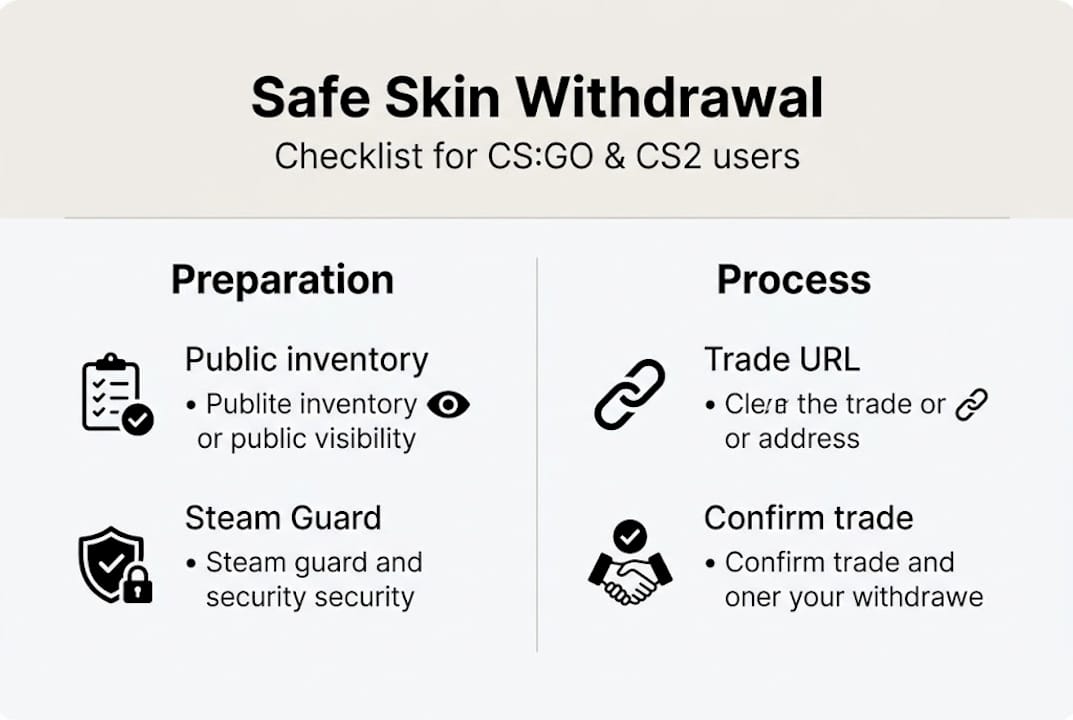
Think of this section as your pre-flight checklist. Skipping even one item here causes problems later, and most failed withdrawals trace back to a missed prerequisite. The general prerequisites for withdrawal are consistent across platforms: your Steam inventory must be public, your Steam trade URL must be linked to your site profile, Steam Guard or Mobile Authenticator must be active, and your account must be free of trade bans or restrictions.
Here is a quick reference table so you can check everything at a glance:
| Requirement | Why it matters | How to check it |
|---|---|---|
| Public Steam inventory | Site bots must see your items | Steam profile > Edit profile > Privacy settings |
| Steam trade URL linked | Enables the site to send trade offers | Site profile settings > Trade URL field |
| Steam Guard or Mobile Authenticator | Confirms trade identity and prevents theft | Steam app > Guard settings |
| No trade ban or restriction | Bans block all outgoing and incoming trades | Steam support dashboard |
| Verified site account | Many platforms require email or phone confirmation | Site account settings |
Before you even attempt a withdrawal, run through this checklist:
- Log into Steam and set inventory visibility to Public
- Copy your Steam trade URL and paste it into your platform account
- Confirm Steam Guard or the Mobile Authenticator is active and responding
- Check your Steam account standing for any active trade restrictions
- Verify your email address on the skin site you are using
Pro Tip: Setting your Steam inventory to public feels counterintuitive if you value privacy, but it is a technical requirement, not a preference. Site bots verify your inventory before sending a trade. A private inventory looks identical to an empty one from the bot's perspective, so your withdrawal simply will not trigger. You can always review safe gambling tips to balance privacy with platform access without compromising your account security.
The table above is not just for reference. Each item is a gear in the machine. One stripped gear and the whole thing stalls. Double-check every row before you proceed.
The step-by-step skin withdrawal process
Once your account is verified and ready, it is time to follow the step-by-step withdrawal process. The exact layout varies slightly by platform, but the flow is the same everywhere.
Here are the sequenced steps for a standard skin withdrawal:
- Log into your skin platform account and navigate to your profile or inventory section.
- Open your cases or complete your battle to earn the skin you want to withdraw.
- Go to your site inventory and look for skins marked as withdrawable. On platforms like Skin.Club, withdrawable skins are marked with specific icons indicating they are ready to be claimed.
- Click the withdraw or "Take" button next to the skin you want. This triggers the site bot to send a Steam trade offer.
- Open Steam on desktop or mobile and navigate to your trade offers inbox.
- Review the trade offer carefully. Confirm the item, sender name, and details before accepting.
- Accept the trade offer within the allotted time window. Most platforms give you between 10 and 30 minutes.
- Check your Steam inventory to confirm the skin has arrived.
This comparison table shows how the process differs between a case opening site and a skin marketplace:
| Stage | Case opening site | Skin marketplace |
|---|---|---|
| Skin source | Opened from a case in-site | Listed by a seller |
| Withdraw trigger | "Take" or withdraw button in inventory | Purchase or trade confirmation |
| Icons to watch | Withdrawal-ready badge or timer icon | Checkmark or "in trade" indicator |
| Trade offer speed | Usually instant or under 2 minutes | Can take up to 15 minutes |
| Confirmation needed | Steam trade + site confirmation | Steam trade only in most cases |
Pro Tip: Accept the Steam trade the moment it arrives. Trade offers have an expiry window, and if you miss it, the skin gets returned to the site bot or re-listed. If you explore the case opening process on platforms like our CS2 case collection, you will notice that withdrawal windows are clearly marked so you always know how much time you have.

Common mistakes and how to avoid skin withdrawal issues
Following the process will go smoothly if all steps are taken, but failing to handle certain details creates common stumbling blocks. These are the mistakes we see most often, and they are all avoidable.
Here are the biggest pitfalls players run into:
- Invalid or outdated Steam trade URL. Steam regenerates trade URLs if you change your password or revoke previous sessions. Always update it in your site profile after any Steam security change.
- Private Steam inventory. If you set your inventory back to private after linking your account, withdrawals will break silently. The site will appear to process the request but no trade offer will arrive.
- Steam Guard disabled or not responding. Without it, Steam will hold trades for 15 days. That means your skin is stuck in limbo for two weeks.
- Slow trade acceptance. Missing the offer window means the bot recalls the item. Set a phone notification or stay near your device when initiating a withdrawal.
- Clicking accept on unverified trade offers. This is where scammers operate. They send fake offers that look identical to real ones.
Security warning: Only accept trade offers through Steam's official secure trade window. Before confirming anything, verify the sender's Steam name matches the platform's official bot account exactly. Scammers use names with invisible characters or minor spelling changes. If something feels off, decline and contact platform support immediately. Never act under pressure.
Most of these issues connect directly back to the prerequisites in the first section. A missed requirement upstream almost always shows up as a confusing error downstream. For example, a player who skips Steam Guard setup will not see a "Steam Guard disabled" error during withdrawal. They will just see a delay and not know why.
Reading up on common betting mistakes gives you a broader picture of where value leaks out of your trades. And if you want to master the full cycle, understanding the skin betting workflow from start to finish prevents these disconnects from happening.
How to verify your withdrawal and optimize future trades
After avoiding common errors, it is important to complete final verification and prepare for even safer, faster trades in the future. Many players skip this part and assume everything worked. Do not assume. Verify.
Start by opening your Steam inventory immediately after accepting the trade. The skin should appear within seconds to a few minutes. If it does not show up, here is what to do:
- Reload your Steam inventory page. Steam sometimes lags on updating inventory displays, especially during high-traffic periods.
- Check your pending trade offers. If the trade is still listed as "pending," it has not completed yet. Wait a few more minutes.
- Look for a confirmation email from the skin site. Many platforms send a withdrawal confirmation that includes a transaction ID you can use for support.
- Check your Steam trade history. Go to Steam > Inventory > Trade history to see if the transfer completed on Steam's end even if the display has not updated.
- Contact site support if the skin is missing after 15 minutes. Provide the transaction ID and trade confirmation timestamp.
Once you have confirmed in Steam inventory that the skin has arrived, take a moment to optimize for future trades. Keep a simple log of each withdrawal: date, skin name, platform, and trade ID. This makes support requests faster and gives you a record of your trading activity over time.
For the long term, use platforms with strong reputations, transparent withdrawal systems, and fast bot response times. Checking out a solid skin trading guide helps you benchmark platform quality, and comparing top trading platforms keeps your options informed and current.
What most guides miss about skin withdrawals (and what actually works)
Now that you have mastered the steps and solutions, here is a perspective most online guides do not cover.
Every checklist-style withdrawal guide tells you to tick boxes. Public inventory? Check. Trade URL? Check. But what they miss is the flow between systems. The skin site, Steam, and your authenticator are three separate systems that need to communicate in a tight sequence. When one of them hiccups, even briefly, the whole trade can stall or fail. The technical settings are the easy part. The real challenge is staying patient and methodical when they do not sync perfectly.
We have seen more failed withdrawals caused by impatience and multitasking than by any actual technical error. A player starts a withdrawal, gets distracted, misses the trade window, and then blames the platform. The fix was simply staying focused for 90 seconds.
Treat every withdrawal like a small financial transaction. Document it, confirm it, and only move on once you have physical proof in your Steam inventory. Applying the mindset from our skin gambling strategies overview, where discipline beats impulse every time, applies just as much to withdrawals as it does to betting. Always use trusted platforms, always double-verify, and never rush the confirmation step.
Optimize your CS2 skin trades with DROP.SKIN
If you want to put these strategies into practice with a proven, secure platform, here is an ideal starting point.
DROP.SKIN streamlines the entire withdrawal experience with instant case openings, a fast and reliable bot system, and clear in-platform guidance at every stage. You will not be left guessing which icon means what or why your trade did not arrive.
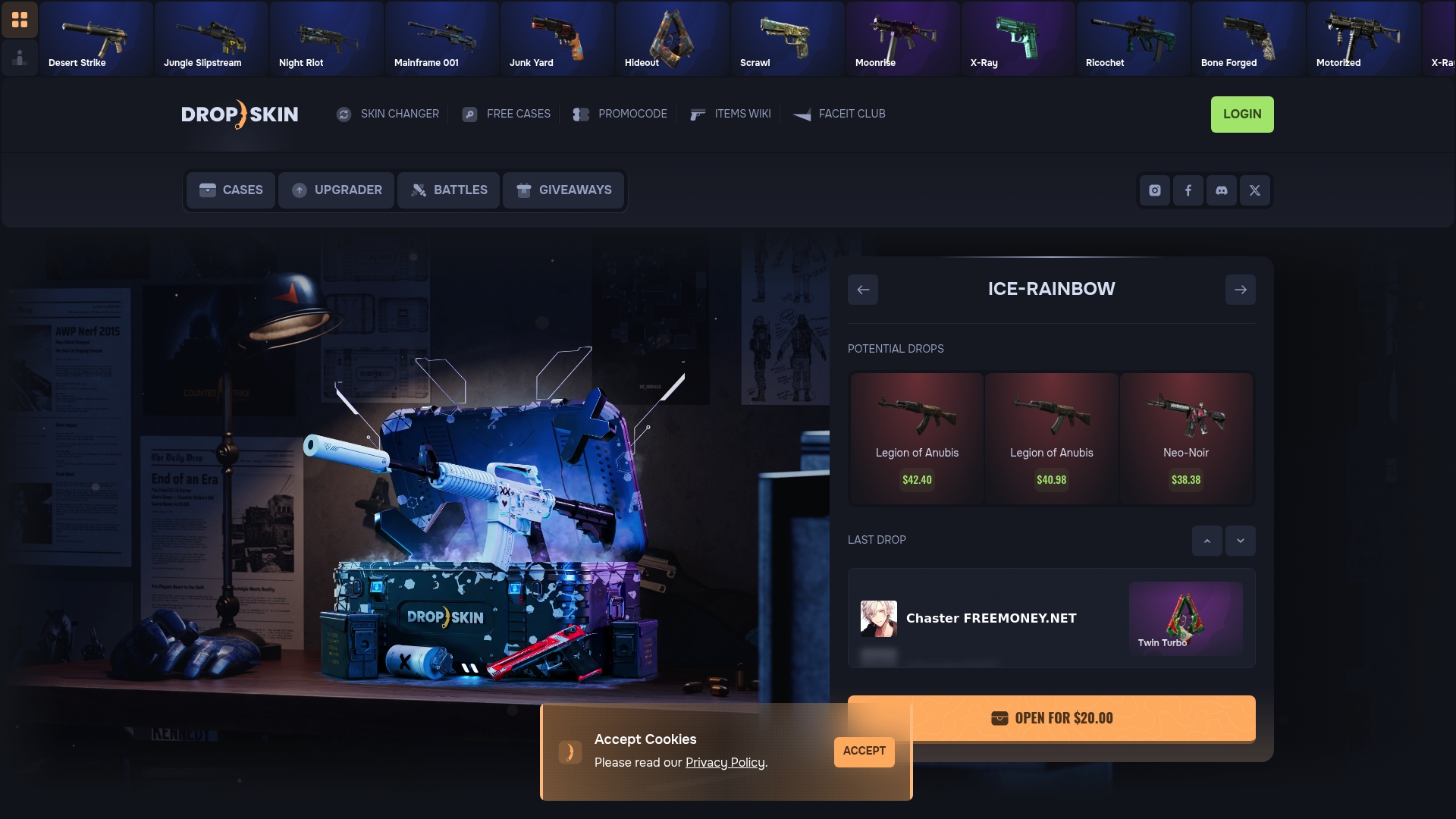
From opening your first case to withdrawing a high-value skin, the process is built to be smooth and transparent. If you want to level up the value of what you already have, the CS2 skin upgrader lets you trade up lower-value skins into premium ones before you even initiate a withdrawal. Try it today and put everything you learned here to immediate use.
Frequently asked questions
Why can't I withdraw my CS:GO or CS2 skins even after winning them?
The most common reasons are a private Steam inventory, missing Steam Guard setup, or an outdated trade URL. Confirm all withdrawal prerequisites are met before retrying.
What should I do if my skin doesn't show up in my Steam inventory after withdrawal?
Reload your Steam inventory, check your trade history, and wait a few minutes for processing. If the skin is still missing, the trade confirmation steps outline exactly what to verify next.
Is it safe to accept trade offers from skin sites?
Yes, as long as you verify the sender matches the official site bot exactly and use Steam's secure trade window. Always confirm in Steam inventory that every detail matches before clicking accept.
How can I make withdrawals faster in the future?
Keep Steam Guard active, maintain a public inventory, and save your trade URL in your site profile permanently. Following Steam Guard requirements consistently removes nearly all common delays.