
TL;DR:
- Verifying Steam Guard status, inventory privacy, and trade URLs is essential for troubleshooting skin trade issues in CS:GO and CS2. Most failed trades result from security settings or errors, not platform glitches, and patience with trade holds often prevents further problems. Protecting your account from scams involves monitoring API keys, avoiding fake sites, and verifying trade details before proceeding.
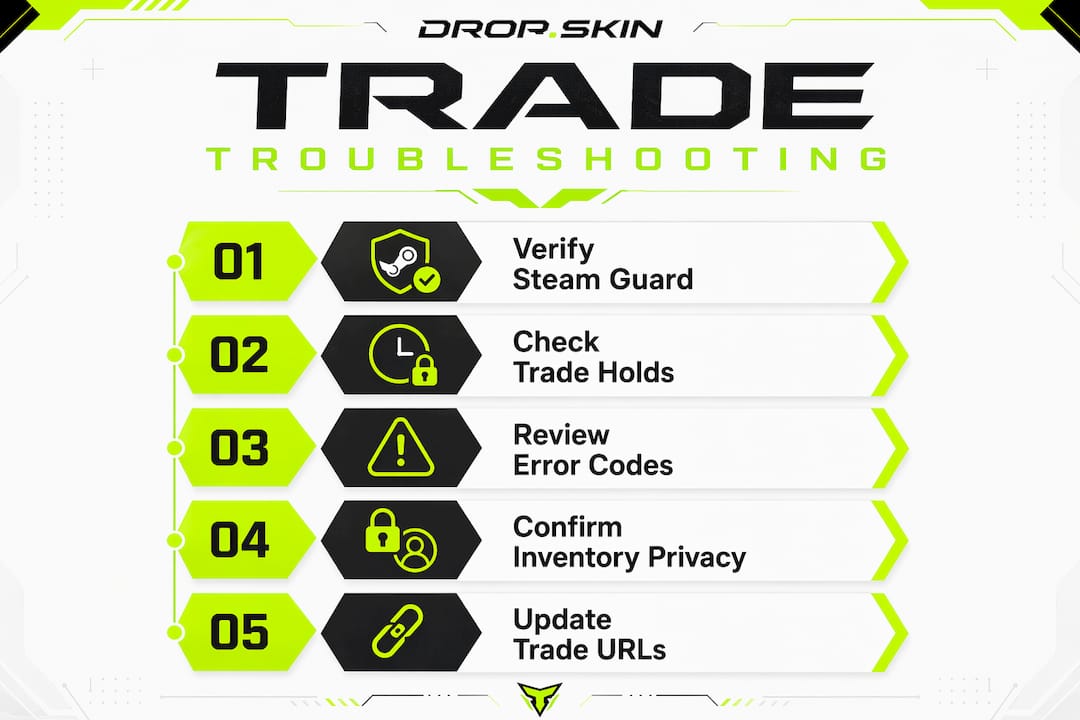
Troubleshooting skin trades in CS:GO and CS2 means systematically verifying Steam Guard Mobile Authenticator status, trade hold durations, inventory privacy settings, trade URLs, and Steam error codes before assuming anything is broken. Most failed trades trace back to one of these five checkpoints, not a Steam bug or platform glitch. This guide covers every layer of the process: from Steam security prerequisites and common trade errors to scam prevention and item recovery. If your trade is stuck, declined, or simply not showing up, the answer is almost always in one of the sections below.
How do Steam Guard and trade holds affect skin trading?
Steam Guard Mobile Authenticator is the single most important prerequisite for smooth skin trading in CS2. Valve enforces a 15-day trade hold for any account that does not have the Mobile Authenticator active for at least seven days. Accounts with the authenticator properly set up for seven or more days trade instantly, with zero hold. That difference alone determines whether your trade settles in seconds or sits frozen for two weeks.
Understanding what triggers a hold is just as important as knowing the hold durations. Security events, including password changes, phone number transfers, and new device logins, reset the authenticator clock and can reimpose a hold even on established accounts. This means a player who updates their phone and reinstalls the Steam app may suddenly face a 15-day hold on every outgoing trade until the authenticator re-qualifies.
Here is what you need to know about trade hold scenarios:
- No Mobile Authenticator active: 15-day hold on all trades, no exceptions
- Authenticator active under 7 days: 15-day hold still applies
- Authenticator active 7+ days: instant trades with no hold
- Security event (password reset, new device): hold reimposed, clock restarts
- Trading with a user who has no authenticator: hold applies to their side of the trade
Trade holds are a security feature with no bypass. Any service or person claiming to remove a hold is running a scam. The only path forward is patience and proper setup.
Pro Tip: Schedule high-value trades at least 16 days after any security event on your account. This gives the authenticator clock time to fully qualify and avoids last-minute holds that delay time-sensitive deals.
What are common Steam trade errors and how can you fix them?
Steam trade error codes look cryptic, but each one points to a specific cause. Diagnosing by error number allows you to fix the actual problem instead of retrying blindly and potentially creating duplicate trade offers. The table below covers the most frequent codes CS2 traders encounter.
| Error Code | Name | Most Likely Cause | Fix |
|---|---|---|---|
| 15 | Access Denied | Not friends, invalid trade URL, or trade ban | Add as friend, update trade URL, check ban status |
| 16 | Timeout | Session expired or Steam server lag | Refresh session, check Steam status page |
| 34 | LogonSessionReplaced | Logged in on another device | Log out all sessions, log back in once |
| 11 | Insufficient Privilege | Account restrictions or cooldown active | Wait out cooldown, verify account standing |
| 25 | ServiceUnavailable | Steam servers down or overloaded | Wait and retry; check Steam status |
Before retrying any failed trade, work through this checklist in order:
- Check Steam trade history first. A trade that shows "Completed" in your history succeeded even if you received an error message. Retrying a completed trade creates a duplicate and wastes both parties' time.
- Verify your friend status with the other trader. Error 15 fires when you are not on each other's friend list and no trade URL is being used.
- Confirm the trade URL is current. Trade URLs reset when a user changes their Steam password or revokes API keys. An outdated URL returns an access denied error every time.
- Refresh your Steam session. Log out of the Steam client and the Steam website, then log back in. This clears stale session tokens that cause errors 16 and 34.
- Check the Steam status page at store.steampowered.com/stats. If Steam's trading system shows degraded performance, the issue is on Valve's end, not yours.
Checking trade history before retrying is the single step most players skip, and it is the one that prevents the most duplicate trade headaches. Make it automatic.
One underappreciated cause of apparent trade errors is platform outages. When BitSkins announced its shutdown in May 2026, users who tried to withdraw skins interpreted missing items as personal trade errors. The platform had simply halted new deposits while processing existing withdrawals through June 30. Always verify whether a third-party platform is operational before assuming your account or settings are the problem.
How to check and configure inventory privacy and trade URLs
Private inventory settings are one of the most common causes of failed trades on third-party platforms, and most players do not realize their inventory is private until a trade fails. Setting inventory to public is required for any external trading site to read your items and generate valid trade offers. A private inventory makes you invisible to those platforms entirely.
Follow these steps to verify and fix both settings:
- Open Steam and go to your Profile page.
- Click Edit Profile, then select Privacy Settings.
- Set My Profile to Public and Game Details to Public.
- Under Game Details, confirm Inventory is set to Public. This is the specific toggle that controls trade visibility.
- Save changes and wait two to three minutes before retrying any trade on a third-party site.
For your trade URL, go to Steam > Inventory > Trade Offers > Who can send me Trade Offers? and copy the URL shown there. Paste it into any trading platform's account settings. If you recently changed your Steam password or revoked API keys, your old trade URL is invalid. Generate a new one and update every platform where you have it saved.
Pro Tip: Save your trade URL in a notes app on your phone. After any account security event, update it across all platforms before attempting your next trade. This takes two minutes and prevents hours of confused troubleshooting.
Trade failures from privacy misconfiguration account for a large share of "broken" trades that are actually just setup errors. Fix the settings once and most third-party platform issues disappear.
How to protect yourself from scams in skin trading
Most skin trade problems are caused by scams and security failures, not Steam bugs. Scammers exploit phishing sites, Steam API key theft, and fake trade URLs to intercept trades or steal items without the victim realizing what happened until it is too late. Recognizing these attack patterns is a core part of fixing skin trade issues.
The most dangerous scam type in 2026 is API key hijacking. Here is how it works and what to watch for:
- API key theft: A phishing site captures your Steam login and generates an API key on your account. The attacker uses this key to cancel legitimate trade offers and replace them with identical-looking ones that send items to their account instead.
- Phishing domains: Fake trading sites mimic real platforms with near-identical URLs. Always verify the exact domain before entering your Steam credentials. Bookmark trusted sites rather than clicking links from Discord or Reddit.
- Fake middlemen: No legitimate trade requires a middleman. Any request to send items to a third party "for verification" is a scam, without exception.
- Go-first pressure: If a trader insists you send your item before they send theirs, decline. Steam's trade system sends both items simultaneously. There is no legitimate reason to go first.
To check whether your API key has been compromised, go to Steam > Account Details > Manage Steam Web API Keys. If you see a key you did not create, revoke it immediately, change your password, and deauthorize all other devices. Then review your recent trade history for unauthorized activity.
Securing your account is not optional when you are trading CS2 skins. It is the foundation that makes every other troubleshooting step reliable.
What to do when a trade fails or items disappear
When a trade fails or items seem to vanish, the first action is always to check your Steam trade history at Steam > Inventory > Trade Offers > Trade History. This shows every offer sent, received, accepted, declined, and canceled. A completed trade means the items moved successfully. A canceled or declined offer means nothing was exchanged and you can retry safely.
If items are genuinely missing after a confirmed completed trade, contact Steam Support with your Steam ID and the specific trade ID from your history. Providing both identifiers gives support the fastest path to investigating the transaction. Some platforms process automatic refunds for declined or canceled offers, but Steam itself does not automatically reverse completed trades.
Key facts about trade reversals and recovery:
- Trade reversals trigger a mandatory 30-day cooldown on both trading and the Steam Community Market. This means you cannot trade or sell any items for a full month after requesting a reversal.
- Cooldowns from reversals can cascade. If a second security event occurs during an active cooldown, the restriction period extends further.
- Repeated reversal requests flag your account and increase the risk of a permanent trade ban. Treat reversals as a last resort, not a routine fix.
- Time limits apply. Steam support is more likely to assist with recent transactions. Waiting weeks before reporting a missing item significantly reduces your options.
The best recovery strategy is prevention. Verify every trade offer carefully before accepting, confirm the recipient's Steam profile matches who you intended to trade with, and never accept offers that arrive unexpectedly.
Key takeaways
Troubleshooting skin trades requires checking Steam Guard status, inventory privacy, trade URLs, and error codes in sequence before attempting any recovery action.
| Point | Details |
|---|---|
| Steam Guard is non-negotiable | Accounts without Mobile Authenticator active 7+ days face a 15-day trade hold on every transaction. |
| Check trade history before retrying | A completed trade in your history means the trade succeeded, even if you received an error message. |
| Public inventory is required | Third-party trading platforms cannot read or trade your items if your Steam inventory is set to private. |
| API key hijacking is the top scam | Revoke any unrecognized API keys immediately and change your password to stop intercepted trades. |
| Reversals cost 30 days of trading | A trade reversal triggers a mandatory 30-day cooldown on trading and the Steam Market. Use them sparingly. |
What I've learned from watching traders troubleshoot the hard way
The traders who waste the most time are the ones who retry a failed trade five times before checking their trade history once. That single habit, checking history first, would eliminate probably half the support tickets I see discussed in CS2 trading communities. The answer is almost always already there.
What I find genuinely underappreciated is how often account security failures masquerade as trade bugs. A player thinks Steam is broken. What actually happened is a phishing site grabbed their credentials three days ago, generated an API key, and has been silently rerouting their trade offers ever since. The fix is not a Steam restart. It is a full account security audit.
The other pattern worth calling out: players who treat trade reversals as a normal troubleshooting tool. A reversal is not a refund button. It is a nuclear option that locks you out of trading for 30 days and puts your account under scrutiny. The traders who build consistent, profitable skin portfolios are the ones who verify before they accept, not the ones who reverse after they regret.
Patience with trade holds is also underrated. Two weeks feels like forever when you want a skin now. But the 15-day hold exists because it stops the vast majority of account takeover trades from completing. It has saved more inventories than it has inconvenienced.
— DROPSKIN
Trade and upgrade your CS2 skins on Dropskin
If you want to skip the friction of peer-to-peer trading entirely, Dropskin gives you a faster path to the skins you actually want.
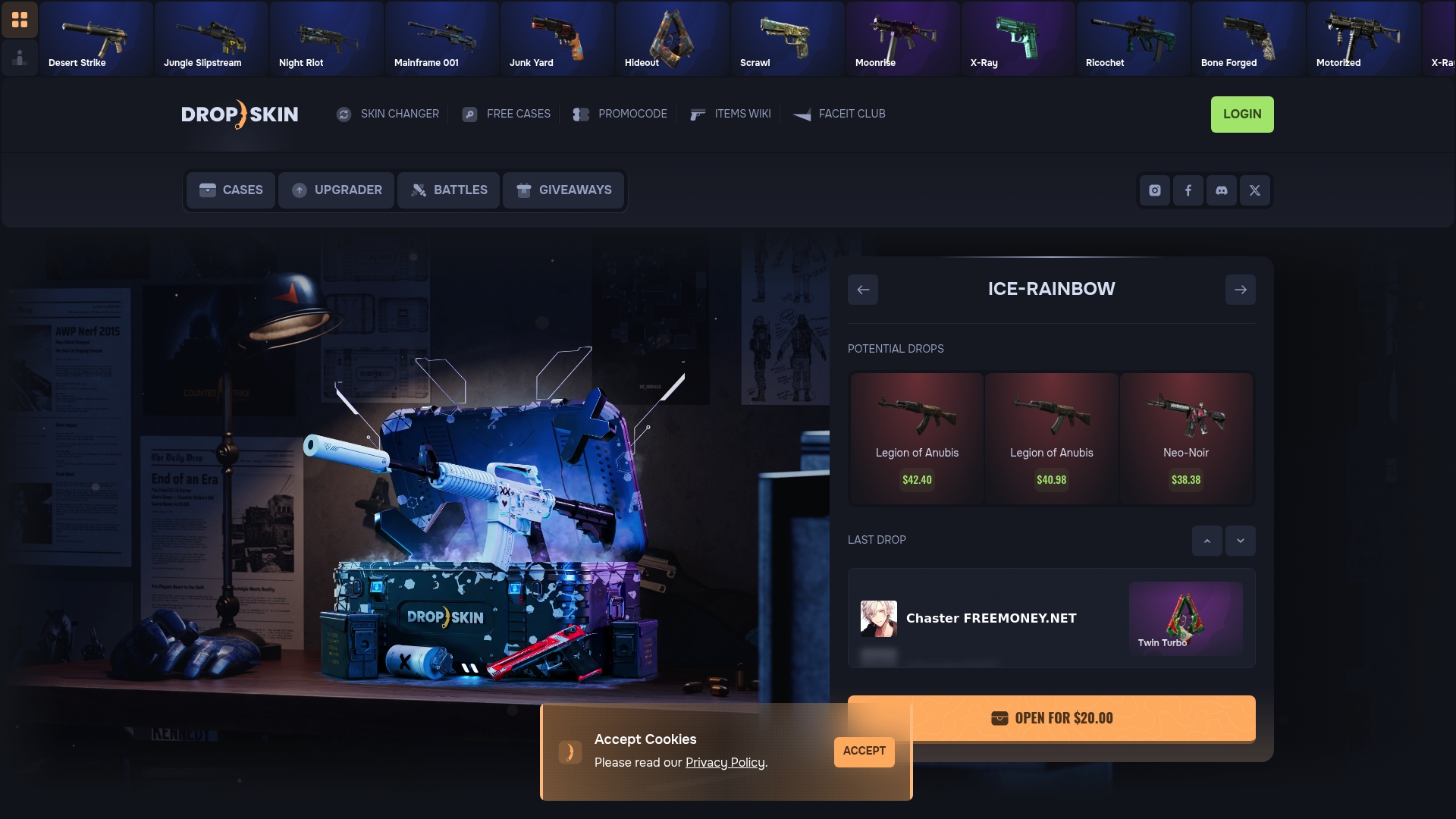
Dropskin is built for CS2 players who want Steam-authenticated trading without the setup headaches. Every transaction runs through Steam Guard compliant processes, so you are not fighting trade holds or misconfigured URLs. For players looking to move up in skin quality without grinding trades, the skin upgrader tool lets you put in what you have and trade up to something better. Case openings, skin battles, and giveaways round out the platform for players who want more than a straight swap. It is fast, it is secure, and it does not require you to trust a stranger on a Discord server.
FAQ
Why is my CS2 trade offer stuck in a hold?
A trade hold of up to 15 days applies when your Steam Guard Mobile Authenticator has not been active for at least seven days. Enable the authenticator and wait the full qualifying period to restore instant trades.
How do I fix Steam trade error 15?
Error 15 means access denied, which is caused by not being friends with the other trader, using an outdated trade URL, or having an active trade ban. Check all three before retrying.
Why can't a trading site see my CS2 inventory?
Your Steam inventory privacy is set to private or friends-only. Go to Steam Privacy Settings and set your inventory to Public so third-party platforms can read your items and generate trade offers.
What happens if I request a trade reversal?
A trade reversal triggers a 30-day cooldown on both trading and the Steam Community Market. Use reversals only as a last resort and always contact Steam Support with your trade ID and Steam ID first.
How do I know if my Steam account has been compromised by a scam?
Go to Steam Account Details and check your Web API Keys. Any key you did not create yourself is a sign of compromise. Revoke it immediately, change your password, and review your recent trade history for unauthorized activity.